

What is GitHub? A complete guide for anyone building with AI
Built an app with AI and worried one prompt could break it? GitHub explained in seven words, with the sentence to say to your AI for each step.
You built an app with AI, everything worked, and then one prompt broke it all? It happens to everyone who builds with AI. The fix has existed for years, and it is called GitHub.
This guide explains GitHub in just seven words, and gives you the sentence to say to your AI for each step. You don't need to memorise a single command.
In short
Git is a program that saves every version of your project on your computer.
GitHub is a website where you upload that whole history, so it stays safe and online.
If something breaks, you go back to the last version that worked.
You can try any new feature without risking the working version.
The account is free, and your project can stay private.
Git and GitHub: what is the difference?
People often mix them up. Git is a program on your computer. Its job is to remember every change in your project, and almost every developer uses it. GitHub is a website built on Git: you keep a copy of your project and its history there, so you can reach it from any device and it survives a dead laptop.
If you learned to build with AI, most likely nobody taught you this. But the AI you work with knows it well, and you can ask for it in plain words.
The seven words
1. repository
Your project's folder, except it remembers everything that happened in it. "Repo" for short. Each project has one repository, holding the files and their history.
Say to your AI: "Create a private GitHub repository for this project and push all the files."
2. commit
A snapshot of every file in your project at this moment, linked to the snapshot before it. Commit after commit, you get your project's whole timeline. The simple rule: every time you finish a step and the app works, commit.
Say to your AI: "Commit with a short message describing what changed."
And when a prompt breaks the app:
Say to your AI: "Go back to the last commit where the app was working."
3. push
So far the whole history lives on your laptop. If it dies, the history goes with it. Push uploads your project and its history to GitHub, so all of it is online.
Say to your AI: "Push."
4. clone
The reverse of push. Found a project or a tool on GitHub? Clone downloads it to your computer with its whole history.
Say to your AI: "Clone this repository and run it on my machine."
5. branch
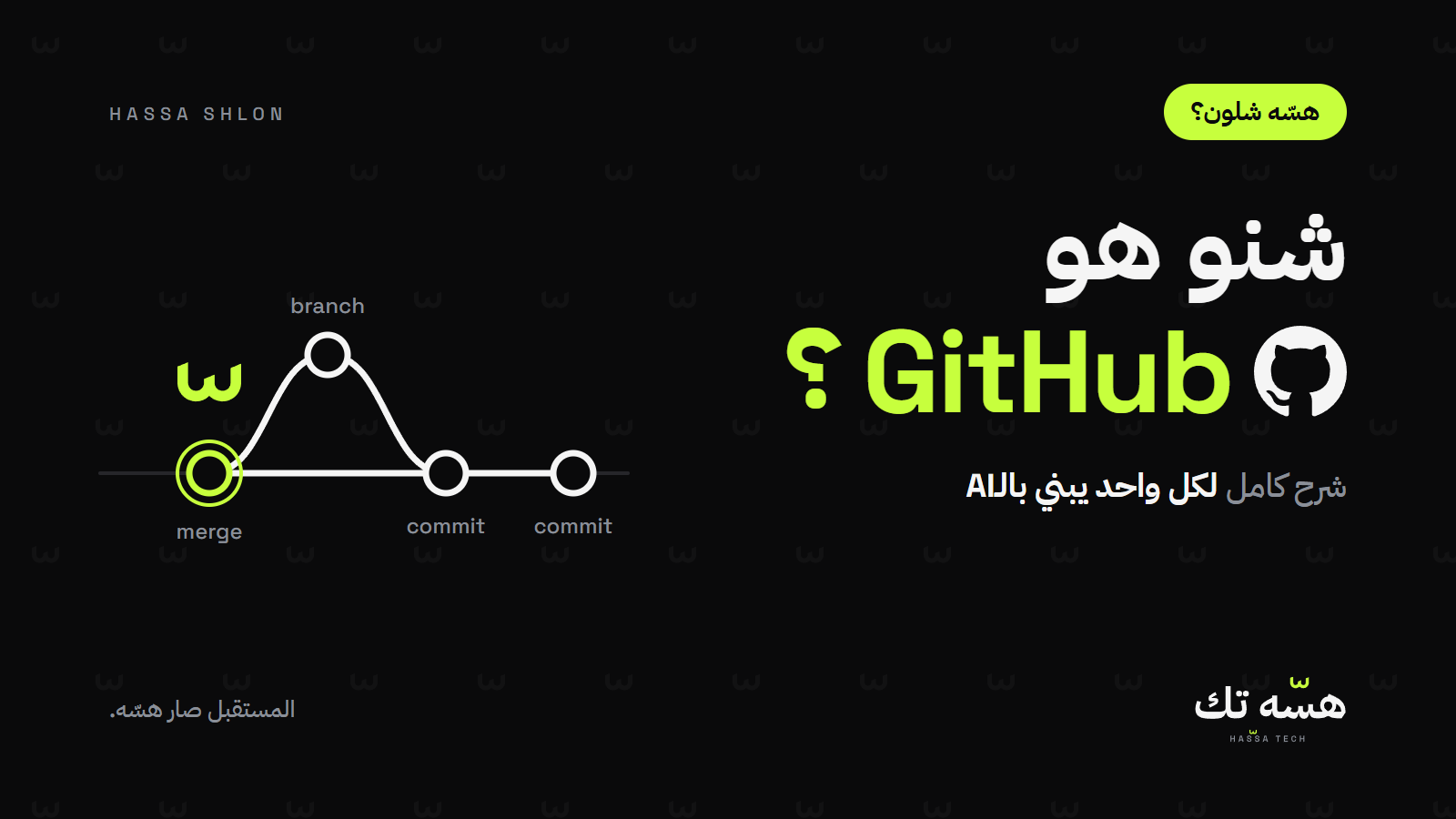
Want to try something new without risking the version that works? A branch is a second line that splits off from the main one. You experiment there freely while the main line stays as it is. The main line is usually called main.
Say to your AI: "Create a new branch for this feature and work there. Leave main as it is."
6. merge
The experiment worked? Merge brings it back into the main line and it becomes part of your project. It didn't? Delete the branch, and it is as if nothing happened.
It worked: "Merge this branch into main."
It didn't: "Switch back to main and delete this branch."
7. tag
When you reach a version you like, tag it, for example v1. It is a fixed name for that version, so you can return to it at any time, even a hundred commits later.
Say to your AI: "Tag this version as v1 and push the tag."
What does it mean for you now?
It is free. A free GitHub account allows unlimited public and private repositories.
Your project stays private. Make it private and only you, and the people you choose, can see it.
No commands to memorise. The AI writes and runs them for you. You only need to know what to ask for.
Before you push: passwords
This is the most important warning in this guide. Never upload passwords or API keys with your project. A repository remembers everything that happened in it, so a password stays in the history even if you delete it from the file later.
Say to your AI before the first push: "Check that there are no passwords or keys in the files, and add .env to .gitignore."
If a password does get uploaded by mistake, the first thing to do is change it immediately. That is GitHub's own advice. Clean the history after that.
How to start today
Create a free account on github.com.
Open your project with your AI and ask: "Is Git installed on my machine?" If not, it will tell you how to install it.
Say: "Create a private GitHub repository for this project and push all the files."
From today, after every step that works: "commit and push".
Quick questions
Do I need to be a programmer?
No. You need to understand the seven words above. The AI does the rest.
Can people see my project?
Only if you make it public. A private project is visible only to you and the people you add.
How often should I commit?
Every time you finish something small and the app works. Many small commits beat one big one, because going back gets easier.
I forgot to push. What happens?
Nothing is lost, but the online copy stays old. Push and it is up to date again.
Sources
We checked the facts against the official sources on 12 November 2026:
Stay in the now
A weekly digest of what mattered in tech, in local context.
No spam. Unsubscribe any time.
Comments0
Sign in to comment
One account to comment, like and save articles.
No comments yet. Be the first to comment.